
There are several options to develop with B4A:
- Android emulator or a VM.
- Connect to a real device in USB debugging mode
- Connect to a real device with B4A-Bridge.
I recommend starting with B4A-Bridge, which is the simplest connection method.
USB Debug Mode
You will need to first configure your device to support USB debugging (Settings - Developer - USB debugging).
In order to reveal the developer settings you should follow these instructions:
- Choose Settings - About Phone
- Find the Build Number entry and click on it 7 times.
- On many devices you need to set the USB connection type to MTP or PTP.
Not all devices support USB debugging.
B4A-Bridge
B4A-Bridge is made of two components. One component runs on the device and allows the second component which is part of the IDE to connect and communicate with the device.
The connection is done over the local network or with a Bluetooth connection.
Once connected, B4A-Bridge supports all of the IDE features which include: installing applications, viewing the logs, debugging and the visual designer (taking screenshots is not supported).
Android doesn't allow applications to quietly install other applications, therefore when you run your application using B4A-Bridge you will see a dialog asking you to approve the installation.
Getting started with B4A-Bridge
1. First you need to install B4A-Bridge on your device.
B4A-Bridge can be downloaded from Google Play: https://play.google.com/store/apps/details?id=anywheresoftware.b4a.b4abridge
Note that you need to allow installation of applications from "Unknown sources". This is done by choosing Settings from the Home screen - Manage Applications.
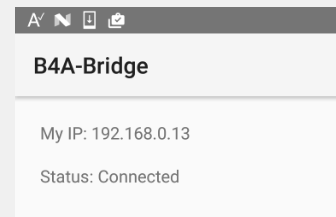
2. Run B4A-Bridge on your device. It will display a screen similar to:

3. Connect the IDE to the device
Go to Tools -> B4A-Bridge -> Connection -> New IP
You will be asked to enter the device IP address. The IP is displayed on the device.
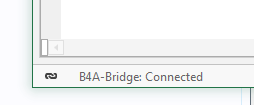
The status bar at the bottom of the screen shows the current status:
That's it.
When B4A-Bridge gets connected it first checks if the designer application needs to be updated. In that case it will first install the designer application.
B4A-Bridge keeps running as a service until you press on the Stop button.
You can always reach it by opening the notifications screen.
As mentioned above, when you run an application you are required to approve the installation. You will usually see the following screens:

Note that the Internet permission is automatically added in debug mode.

In the above dialog you should choose Open to start the application.
If you try to install an existing application signed with a different key, the install will fail (without any meaningful message). You should first uninstall the existing application. Go to the home screen - Settings - Applications - Manage applications - choose the application - Uninstall.
Once you finished developing you should press on the Stop button in order to save battery.
Logs
With B4A-Bridge the logs will only appear in release mode if you add this line to the main module:
It is better to comment this line before submitting your app to Google Play.
B4A-Bridge source code is available here: http://www.b4x.com/forum/basic4andr...ls/8153-b4a-bridge-source-code.html#post45854
Tip
You can click on the B4A-Bridge status in the IDE to connect or disconnect the bridge.
- Android emulator or a VM.
- Connect to a real device in USB debugging mode
- Connect to a real device with B4A-Bridge.
I recommend starting with B4A-Bridge, which is the simplest connection method.
USB Debug Mode
You will need to first configure your device to support USB debugging (Settings - Developer - USB debugging).
In order to reveal the developer settings you should follow these instructions:
- Choose Settings - About Phone
- Find the Build Number entry and click on it 7 times.
- On many devices you need to set the USB connection type to MTP or PTP.
Not all devices support USB debugging.
B4A-Bridge
B4A-Bridge is made of two components. One component runs on the device and allows the second component which is part of the IDE to connect and communicate with the device.
The connection is done over the local network or with a Bluetooth connection.
Once connected, B4A-Bridge supports all of the IDE features which include: installing applications, viewing the logs, debugging and the visual designer (taking screenshots is not supported).
Android doesn't allow applications to quietly install other applications, therefore when you run your application using B4A-Bridge you will see a dialog asking you to approve the installation.
Getting started with B4A-Bridge
1. First you need to install B4A-Bridge on your device.
B4A-Bridge can be downloaded from Google Play: https://play.google.com/store/apps/details?id=anywheresoftware.b4a.b4abridge
Note that you need to allow installation of applications from "Unknown sources". This is done by choosing Settings from the Home screen - Manage Applications.
2. Run B4A-Bridge on your device. It will display a screen similar to:
3. Connect the IDE to the device
Go to Tools -> B4A-Bridge -> Connection -> New IP
You will be asked to enter the device IP address. The IP is displayed on the device.
The status bar at the bottom of the screen shows the current status:
That's it.
When B4A-Bridge gets connected it first checks if the designer application needs to be updated. In that case it will first install the designer application.
B4A-Bridge keeps running as a service until you press on the Stop button.
You can always reach it by opening the notifications screen.
As mentioned above, when you run an application you are required to approve the installation. You will usually see the following screens:
Note that the Internet permission is automatically added in debug mode.
In the above dialog you should choose Open to start the application.
If you try to install an existing application signed with a different key, the install will fail (without any meaningful message). You should first uninstall the existing application. Go to the home screen - Settings - Applications - Manage applications - choose the application - Uninstall.
Once you finished developing you should press on the Stop button in order to save battery.
Logs
With B4A-Bridge the logs will only appear in release mode if you add this line to the main module:
B4X:
#BridgeLogger: TrueB4A-Bridge source code is available here: http://www.b4x.com/forum/basic4andr...ls/8153-b4a-bridge-source-code.html#post45854
Tip
You can click on the B4A-Bridge status in the IDE to connect or disconnect the bridge.
Attachments
Last edited:


